
- Training
- Service
- Promotion
- Schedule
- Testing Center
- News
- Contact
6/10/2021


It's really common to have a column of full names that you want to separate into a first name column and a last name column. Excel has an easy built-in feature to do this called Text to Columns. It allows you to split cells by character.
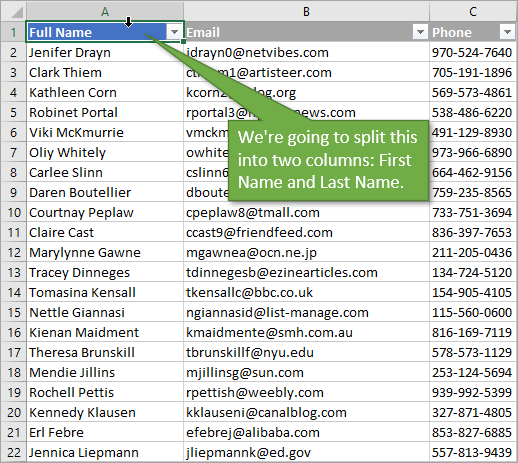
As you can see, I'm starting with a simple table that has a Full Name column.
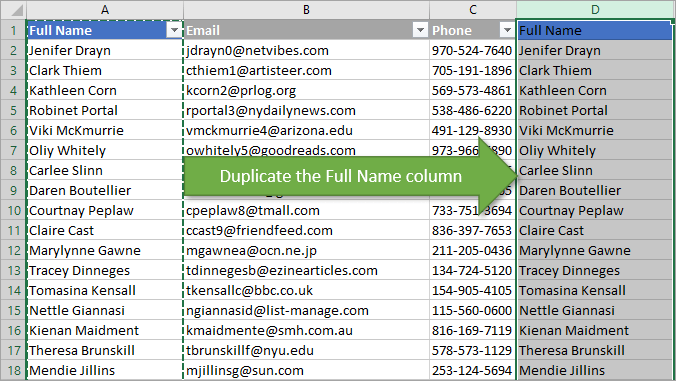
The first step is to duplicate the column. I'm doing this because I want to keep a column for the full name in addition to having columns for both first and last names. If you don't want to keep a Full Name column, you can skip the duplication step.
To duplicate the column, just copy the column and paste it into a blank column.
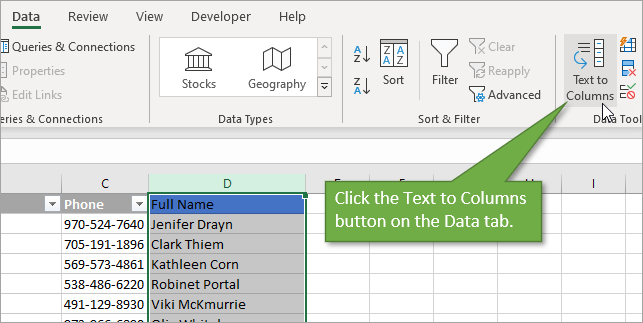
With the new column selected, click the Text to Columns button on the Data tab.
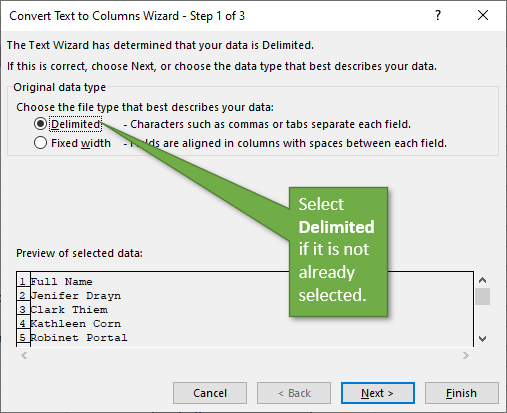
This will open up the three-part Text to Columns Wizard. For the first step, ensure that the Delimited button is selected and hit Next.
In the second step, select Space for the type of delimiter that we want to split by. This will break up the first names from the last names because they are already separated by a space. You'll notice that the wizard gives a little preview for how the split will look.
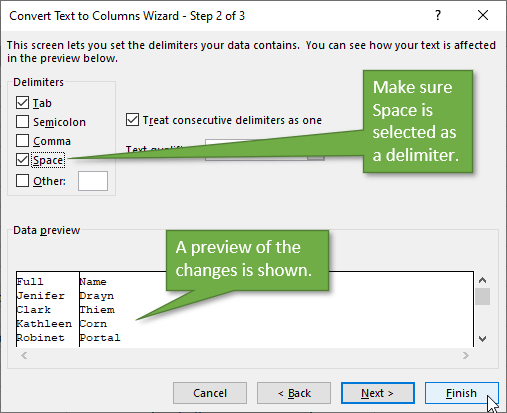
Nothing is required on the third step of the wizard, so just hit Finish on the second step.
You now have two columns instead of one. Of course, you can rename the columns to First and Last and move them around in your table if you wish.
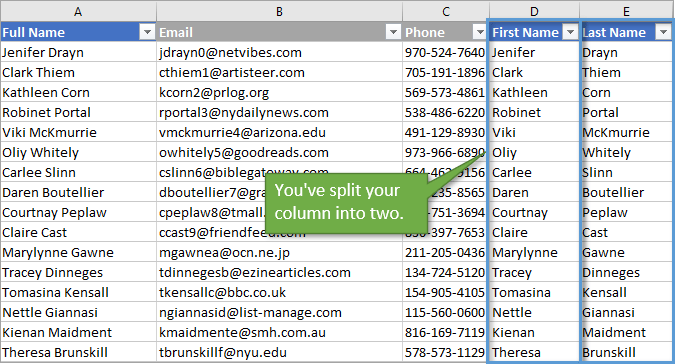
As you can tell, this method for splitting columns is super easy and is great for quick, one-time uses. But if you expect your source data to constantly have edits or additions, it's not the best method.
In that case, I recommend using Power Query to split your columns. Using Power Query, updating the data in your split columns is instantaneous whenever you refresh your query. Using Text to Columns, you would essentially have to delete your new columns and start again if you wanted to update.
Another instance of the Power Query method being superior to Text to Columns is when some of the Full Name entries include a middle name.
When we use Text to Columns and some of the entries have middle names, the names get split into three columns, which is good. But for the entries that don't have middle names, the last name gets put into the second column instead of the third, which is bad.
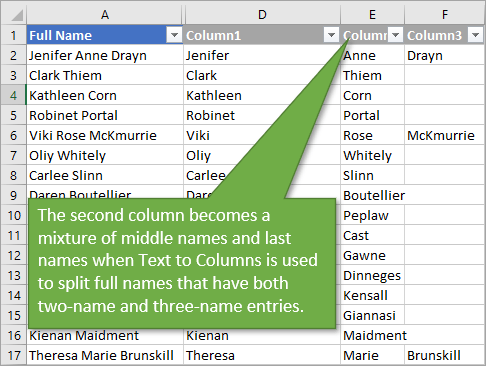
Using Power Query, you can split off the the last names first, then the first names can be separated, leaving the middle column populated only when it's applicable.
Source: excelcampus.com

12/11/2025


